Placing Objects

To add an object from the Library of Things into your image, simply click and drag the item into position. Release to drop the object onto your design.
Once placed, you can click on the object to modify it further using the Object Menu.
Object Menu
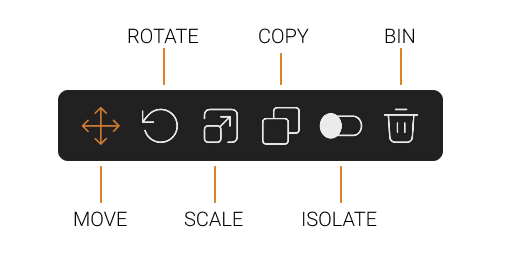
Move
Adjust the object's position in the image.
Rotate
Change the objects orientation.
Scale
Objects automatically resize when moved around the image, but you can manually adjust the size by dragging the anchor points on the corners of the green selection box.
Copy
Instantly duplicates the selected object.
Isolate
Temporarily hides all other objects so you can focus on this one.
Delete
Removes the object from your design
Top Tip
Click anywhere outside the object to finish editing.